How to add custom CSS to your storefront


If you would like to tweak the styling on the storefront, you can easily add CSS rules to the page using the dashboard.

To add custom CSS rules to your storefront, head over to your dashboard and click on Settings in the menu. On the settings page, click the Store Settings tab, and scroll down to the box called Advanced Styling.

Add your CSS rules to the input titled Custom CSS and then click save at the bottom of the page. 

To see your new rules in action, click on the Storefront button in the menu. 

If your CSS rules don’t immediately show up, try emptying the cache on your browser, or try a different browser. 

Here is an example CSS rule, which boosts the font size on the featured product title:

.featured-product-name {
    font-size: 36px;
}
114 views

How to make Custom Cards?


If you’d like to make a card on your storefront that isn’t a product, you can create a custom card.

Custom cards appear on your storefront beside your other vouchers, and you can configure them to say anything you want.

Here’s an example of one:


These cards are great for letting your customers know about changes at your business, or to get them even more excited to visit. 

You can create a custom card by going to your products page and clicking this button:


Add a title for the card:


Then add some text to the card:


Add an Image

You can add an image from your computer, or you can select one from the library:


Setting up the button

Custom cards come with a button on the bottom, and you can set the text on the button, and where it goes when the user clicks it. 

You can do that with these controls:


Once you’ve done that, click Save Card and your new Custom Card will appear on your storefront. 


Positioning the card on the storefront

To change the position of the Card on your storefront, you can drag the card up and down the product list using the grabber icon on the left hand side.


125 views

You can add tracking code to your storefront to help you understand how your customers arrive at your storefront and how they behave.

Adding tracking code to your website can help you where your visitors are coming from, how many there are and much more. 

I’ll show you how to add tracking code for Google Analytics, but the same approach will work for many different tracking systems, such as Facebook Pixel, Hotjar and more. 

How to add Google Analytics tracking code to your storefront

Head over to Google Analytics, and set up your account. 

When you get to the question What do you want to measure?, choose Web.

In the field that asks for your website URL, enter your storefront URL

To copy your storefront URL to your clipboard, you can use this button on your dashboard:

Once you’ve set up your site in Google Analytics, you’ll be able to find your tracking code in the tab called Tracking Info:

Copy the full tracking code to your clipboard and head over to your Voucher Connect settings.

Click on the Store Settings tab and scroll down to the Tracking Code section. Simply paste your tracking code into the input, and click save. That’s all there is to it. Data should shortly start appearing in your Google Analytics dashboard.

53 views

How to customise your Apple Wallet


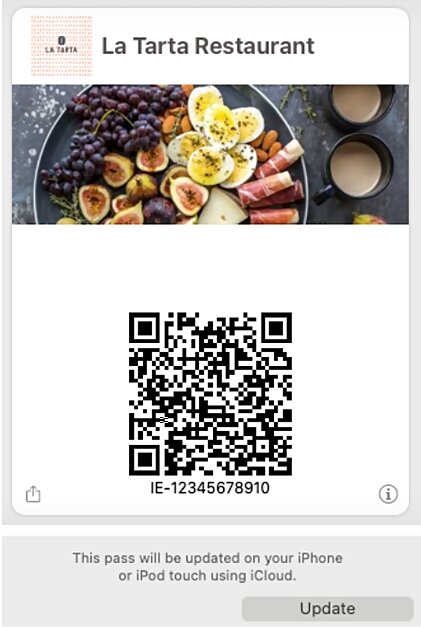
Let your customers add their gift voucher to their Apple Wallets so they can easily access it from their iPhone or Apple watch.

It’s great to give customers another option on storing their gift vouchers. I’ll show you how..

  • Head over to your Voucher Connect dashboard.
  • Click Settings – General Settings from the main menu.
  • From here scroll down to Wallet Settings, this is the last option on the left hand menu.

Next up, you can customise your Apple Wallet styling.

  • Upload an image and logo you would like to appear on the Apple Wallet voucher.
  • Pop in the background colour and title colour. We recommend using your branding colour scheme here.

Not sure how it will look, no problem. We have added a Try It button so you can view how it will look to your customers (only available on Apple devices).

Once you are happy with how your Wallet styling looks, you can click Enable Apple Wallet and Save.

When a customer buys a gift voucher, they will now have the option to add it to their Apple device for easy access 😃

And that’s it!

If you have any questions, just let us know. We’re always happy to help 😊

83 views

Storefront Navbar


Add a navbar to your storefront to easily add custom links and browse through vouchers in your categories.

When you add a few products to your storefront, adding a navbar is an easy way to help your customers find what they are looking for. 

You can add your voucher products to categories, and these categories will appear in your navbar. 

For example, if you own a day spa, you could have a category for Beauty Packages, and another category for Facials. Visitors on your storefront can click on the Beauty Packages category in the navbar and Voucher Connect will show them all of your offers and products in that category. 


How to enable the navbar

Head over to your dashboard, and click on Settings, then click on Navbar left side menu. 

Set the navbar to enabled, and your Navbar options will pop up.

You can choose to have a Navbar or Floating Menu.

The navbar will appear at the top of your store, just underneath your logo.

The floating menu will appear as a dropdown menu.


You can add categories through Products Product Categories if haven’t already done so.

If you’d like to add a custom link to your navbar, it’s as easy as clicking Add a link to the Navbar.

You can link to any page on the internet, just be sure to enter the full URL (including https).

If you need a hand with anything, just let us know. We’re always happy to help 😊

63 views

Get A Demo

Leave your name, phone number and email address and we will be in touch to arrange a demo.

Boost revenue by 62% ?

The gift card solution that costs less and delivers more