How to manage your Group Settings.


You might want to control who joins your group, no problem! Group Settings allows you to set whether you would like to approve group members to join your group or not.

This setting is set to default as Approval Required. If you would like to change it to Approval Not Required, choose this option from the dropdown menu and click Save.

Here’s how to find Group Settings

  • Pop over to your Voucher Connect dashboard.
  • From the main top menu, click Groups.
  • Click Group Settings from the dropdown or the left-hand menu.


If you need a hand or have any questions, just let us know. We’re always happy to help 😊
70 views

How to manage and track your Group Payouts.


Manage and track all of your Group Payouts under your Group Payouts feature 💰

  • Head on over to your Voucher Connect dashboard.
  • From the main top menu, click Groups.
  • Click Group Payouts from the dropdown or the left-hand menu.

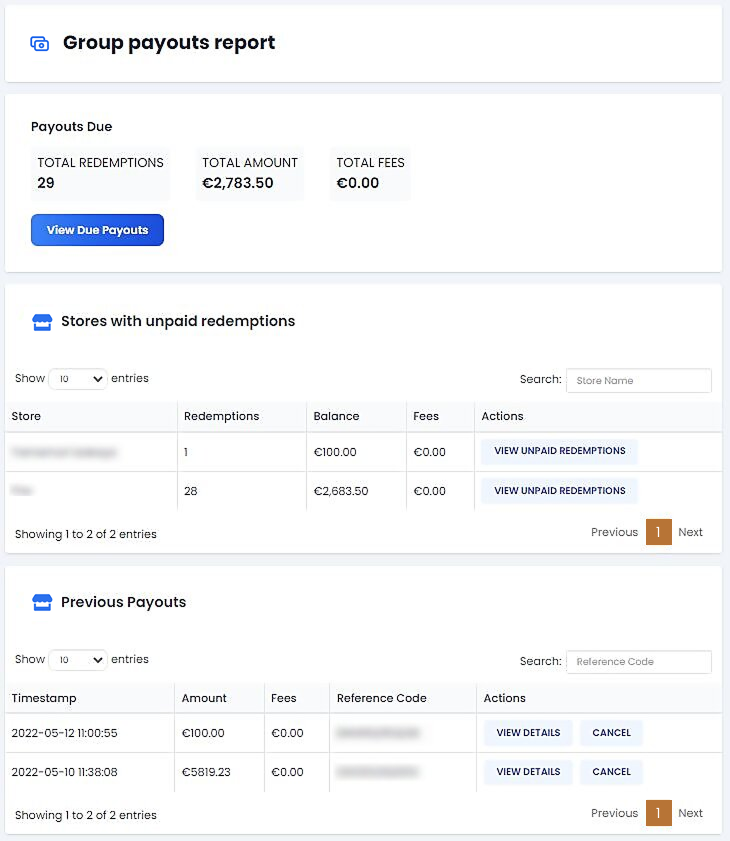
Here is an example of a Group Payouts Report :


You can choose to payout all stores with unpaid redemptions by hitting View Due Payouts.

You will see a list of all due payouts. Here you can remove certain stores from payouts or edit the redemptions in this particular payout.


When you are happy with all stores included in the payout, hit Continue.

Next, you will need to confirm that all payout details are correct.

Click Confirm Payment Complete and your group members will be notified of the payout being processed.


Here you also have the option to download the payout invoice as a PDF for your own records.

Each payout will have a unique reference code. This reference code can be used to search for specific payouts. This code is available to both you and the group member.

If you need a hand or have any questions, just let us know. We’re always happy to help 😊

133 views

How to manage your pricing plans of your group members.


Plan Management allows you to charge a fixed fee per redemption, or a percentage commission on the value of the redemption of each group member.

These fees are taken into account in your group’s payout reports.

Here you can create a new pricing plan by clicking Create New Plan or you can edit an existing plan by clicking Edit Plan under the Actions tab.

If you would like to apply different plans to certain group members, you can do this through the Group Members tab.

You can add all group members to the same plan or add as many different plans as you need.

Fees will always be shown on payout reports to both you and the group members.


And that’s all there is to it! If you need a hand or have any questions, just let us know. We’re always happy to help 😊

67 views

How to manage the settings for when a new member joins your group.


You might want to set a warm welcome message to your new group members when they are registering to join your Group or explain how your group works.. Registration Settings is where you can do this.

  • Login to your Voucher Connect dashboard.
  • From the main top menu, click Groups.
  • Click Registration Settings from the dropdown or the left-hand menu.

First up, introduce your group members and welcome them on board with an introduction message. this can be as simple as a short welcome message or a detailed introduction to how your group works.


Next is to set a cover image and group logo for your registration page. These will be shown at the top of the registration page and are a great way to show off your branding.

You can also share your registration link to invite new members to your group from here:


If you need a hand or have any questions, just let us know. We’re always happy to help 😊
85 views

How to Load or Top-Up a Voucher on the Mobile App


It’s easy to top up a voucher. Let’s have a look..

We have put together a handy guide to make loading vouchers quick and easy for you and your staff.

The best way to load a voucher is through the Voucher Connect mobile app, by scanning the QR code on the voucher. You can also manually input the Voucher Code.

The Voucher Connect mobile app makes it very easy for any member of staff to scan and redeem a presented voucher. The Voucher Connect app is available on iOS and Android – just search in the App Store or Play Store for Voucher Connect.

How to load a Voucher with the mobile app:

  • Use your Voucher Connect user account to log in to the app.
  • On the load page, select Scan. This will activate mobile’s camera for QR code scanning. You can also manually input the Voucher Code.


  • You will then be presented with the current balance on the voucher (if any).
  • Enter the top-up amount by using the scroll to choose the correct amount or enter the amount on the keypad, press top up and confirm the amount.
  • The voucher has now been validated for the customer. You can proceed with payment.


Finally, we recommend entering the voucher code into your Point of Sale for your end of day report.

We hope this helps. If you run through any issues, don’t hesitate to contact us and one of our team will help you through it.

271 views

Get A Demo

Leave your name, phone number and email address and we will be in touch to arrange a demo.

Boost revenue by 62% ?

The gift card solution that costs less and delivers more