Top Up OR Sell a Gift Voucher from Lightspeed R-Series


Step A:

  • Open a new sale
  • Select Voucher Connect from the top bar.
 

Lightspeed R-Series 1


Step B:


  • Select Top Up / Activate Vouchersell voucher lightspeed k series


Part C:

  • Select ‘Quick Sale or Top UpR-Series Top Up 1


Part D:

  • Scan QR Code – this will open the camera.
    Simply scan the QR code on the Voucher to identify the Voucher details
    OR
  • Manually enter the Voucher Code
  • Select ‘Validate’ 

    Lightspeed R-Series Top Up 2


Part E:

  • Enter the Voucher Top Up / Sale amount
  • Select ‘Top Up’
  • Lightspeed R-Series Top Up 3


Part F:

  • The transaction will be confirmed
  • Click “Finalize” to return to R-Series and Take PaymentLightspeed R-Series Top Up 4


Part G:

  • The Voucher Sale will be itemised at on the Sale page.
  • Proceed to ‘Payment’


52 views

How to Redeem a Voucher from Lightspeed R-Series

Part A:

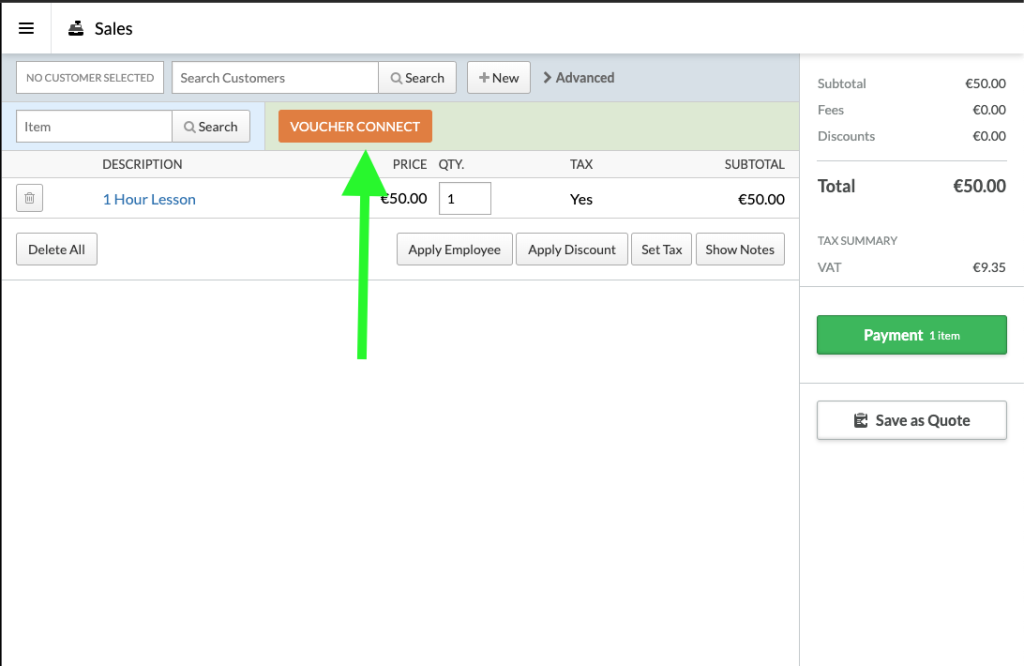
  • When the customer is ready to pay with their voucher simply hit the Voucher Connect Button
  • This will open the Voucher Connect window inside Lightspeed R-SeriesLightspeed R-Series 1


Part B

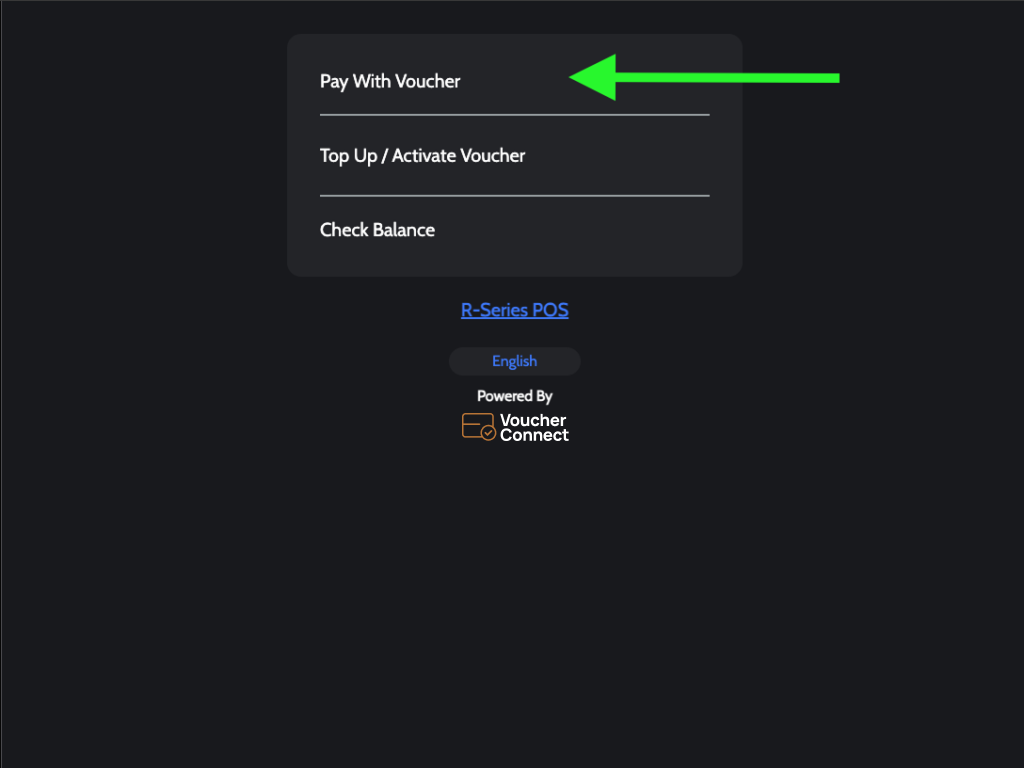
  • Select ‘Pay With Voucher’


Part C:

  • Scan QR Code – this will open the iPad camera. Simply scan the QR code on the Voucher to identify the Voucher details
    OR
  • Manually enter the Voucher Code
  • Select ‘Validate’

Lightspeed R Series


Part D:

  • Confirm the payment amount by Gift Voucher – the integration will auto-populate with the the full bill amount OR the remaining balance on the Voucher if the bill is greater than the Gift Voucher balance.
  • Select ‘Pay With Voucher’ 

    Lightspeed R-Series


Part E:

  • You will be redirected to Lightspeed R-Series
  • Voucher Connect Payment Type has now been auto applied
  • To close the bill click “Payment”
  • Click ‘Finish Sale’ to close the bill to Voucher Connect

Lightspeed R-Series Payment

R-Series Receipt


You have now Redeemed a Gift Voucher – congratulations! 

This payment will be recorded to Voucher Connect as a payment type in your Lightspeed reporting.


72 views

Note:
New gift cards are Gift Cards generated for you by Voucher Connect that have never been used before and are treated as “inactive” by Toast prior to first Top Up event.

If you are using gift cards  from another platform: they will need to be imported to your account by our support team. Contact us to arrange this.

  1. Click Gift Cards > Sell Card

  2. Enter Sale Value > Next

  3. Scan the card QR code using Toast POS Camera

    OR

    Key In the Numeric code of the Card into the box

    > Click Done

  4. Finalise the Sale


98 views

Summary:

This is an advanced setting for detailed voucher Sales reporting.

You can configure all new voucher sales made via R-Series integration to be allocated to a specific Sales Category and SKU by following the instructions below. Note for this example we have already created a Voucher Sales category.

  1. Login to Lightspeed R-Series Dashboard > Inventory > Create New Item

    R-Series

  2. Inspect the updated Item URL for the Product ID:

  3. Update Product ID in Voucher Connect dashboard > Settings > Integrations > Lightspeed R-Series

  4. Future integrated Voucher Sales will now be allocated to Product.

55 views

R-Series Voucher Connect integration works via the Lightspeed R-Series web application.

Connect your Accounts:

  1. Login to your Voucher Connect dashboard.

  2. Go to dashboard.voucherconnect.com

    Settings > General Settings > Integrations > Lightspeed (R-Series) to connect your accounts.

    Configure Voucher Connect button in R-Series

  3. Login to your Lightspeed R-Series Account

  4. Go to Settings > Advanced Setup > Custom Menus > Register Sale Tab

  5. Add New Button.

    Name = Voucher Connect.
    Type = Open Web Page. 
    Colour = Orange
    Add Button To Menu
    Edit the New Button

  6. Edit Button URL


    Update the URL as https://dashboard.voucherconnect.com/lightspeed/r/payment


  7. You are Now Integrated
    If you have any difficulties please let us know at [email protected]
74 views

Get A Demo

Leave your name, phone number and email address and we will be in touch to arrange a demo.

Boost revenue by 62% ?

The gift card solution that costs less and delivers more