HOW TO CAPTURE ADDITIONAL PURCHASE DETAILS

Simply Login to your Dashboard to add additional purchase details at checkout.

Click Settings on the main menu  – Click Store Settings from the right hand menu.

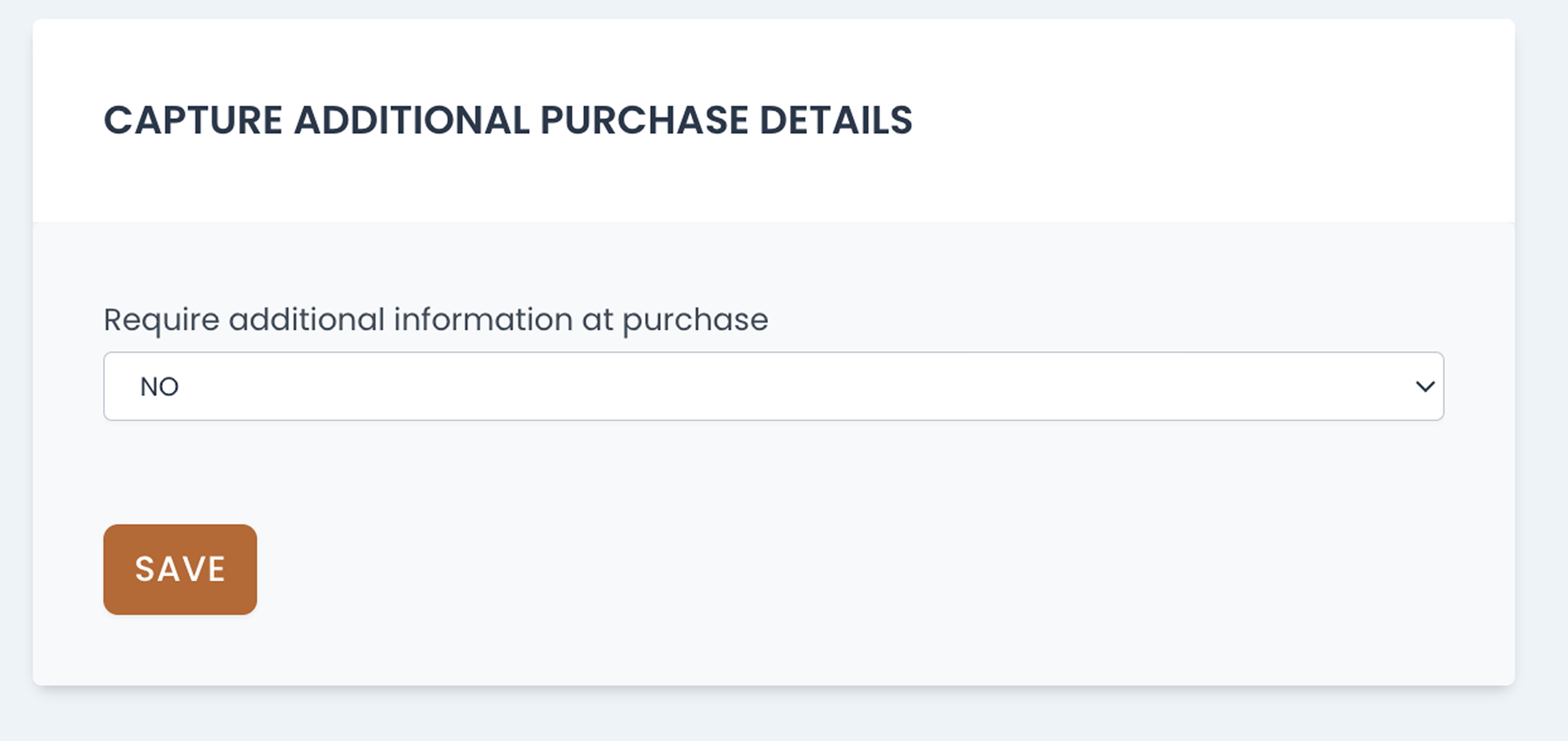
Scroll down the page to find  the below section:

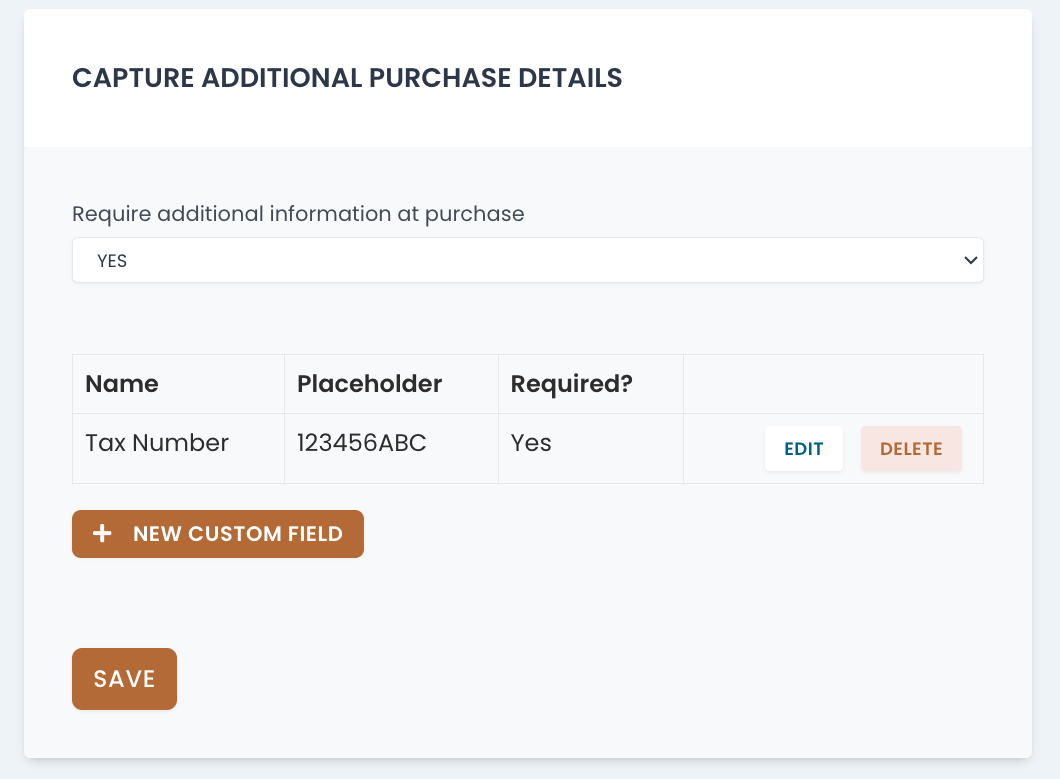
Click YES to get started. Once you select Yes the below fields will appear. Here you can add custom fields at checkout.
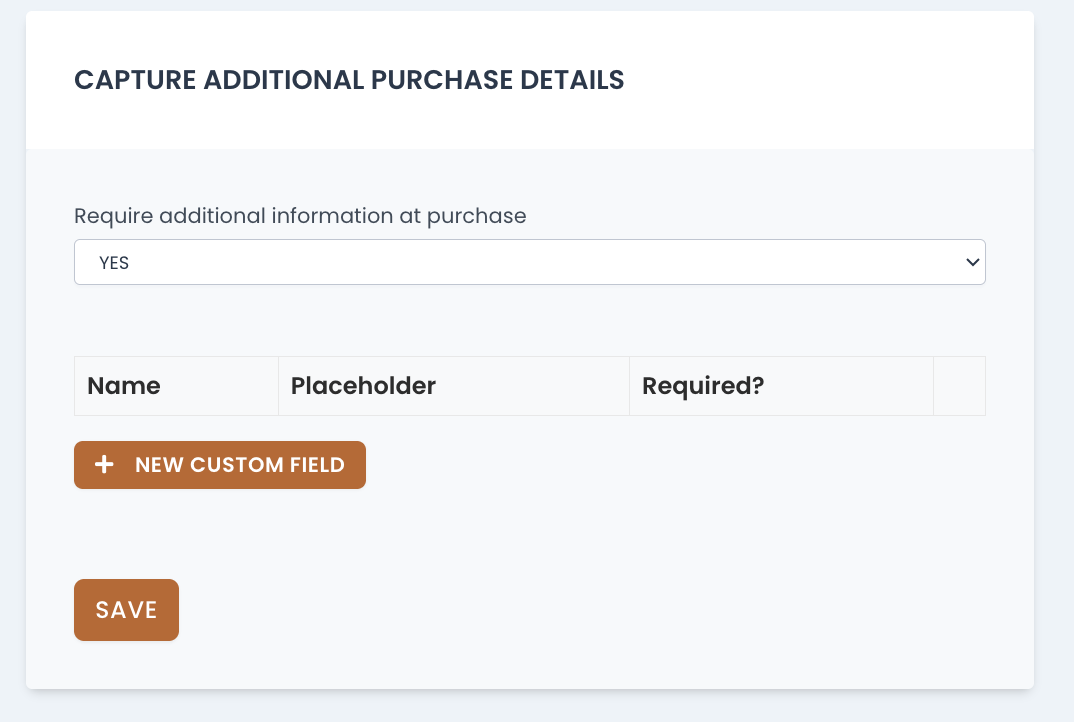
 

Click ‘+ New Custom Field’ which will bring up the following box where you can enter your additional details. If you select ‘Is Required’ this will ensure the customer must enter these details at checkout, it will not be an optional field.


Example below of this feature used:


The new field ‘TAX NUMBER’ is now displayed for the purchaser at checkout:

Any additional information that is required will appear on the Purchase Receipt for the customer.

 

62 views

How to Run Reports from your Dashboard

Simply Login to your dashboard to run available reports e.g. Sales, Unredeemed vouchers, Redeemed vouchers.

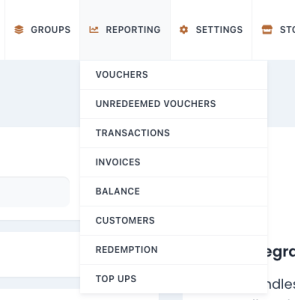
Under Reporting on the main menu you will find a list of reports available to run as per below, most requested reports are as follows.

  • Transactions – This report will detail all sales including Top Ups.
  • Unredeemed Vouchers – This report will detail the balance remaining on any unredeemed vouchers.
  • Redemption – This report will detail all vouchers that were redeemed and for what amount.


Once you have selected the report you require, you can filter your report by date range.

Simply enter the From and To date and click Search.

Once your search is complete you can click Export as CSV to view your data in Excel format for ease of viewing/filtering:


92 views
  1. Open a new tab in Toast via Table Service or Quick Order

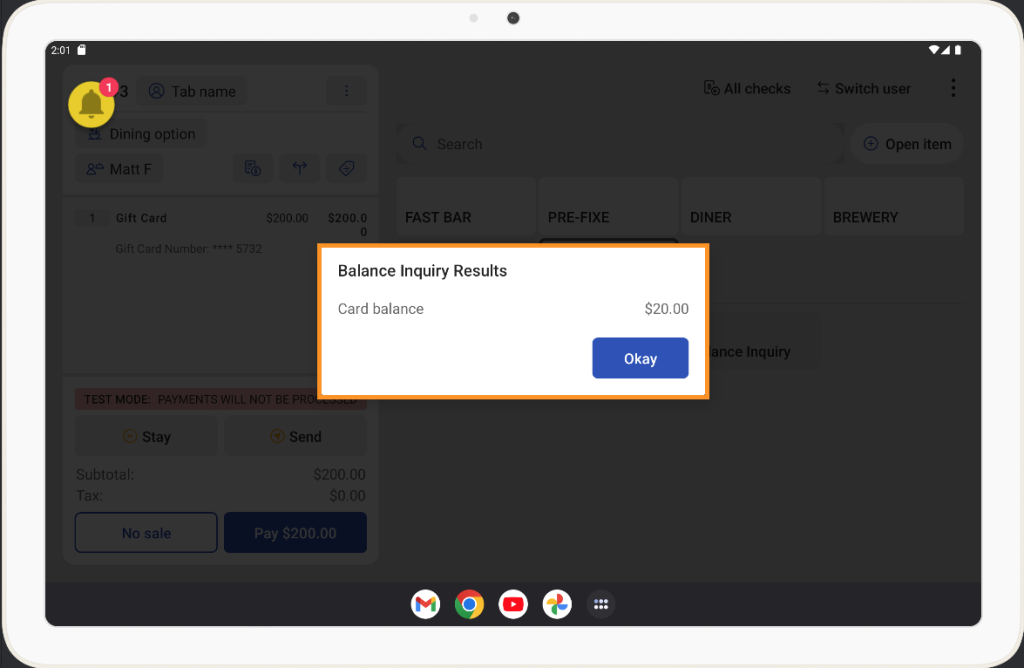
  2. Click Gift Cards > Balance Inquiry
    toast pos - balance inquiry 1
  3. Scan the card QR code using Toast POS Camera OR Key In the Numeric code of the Card into the box > Click Done
  4. Gift Card Balance will display
92 views
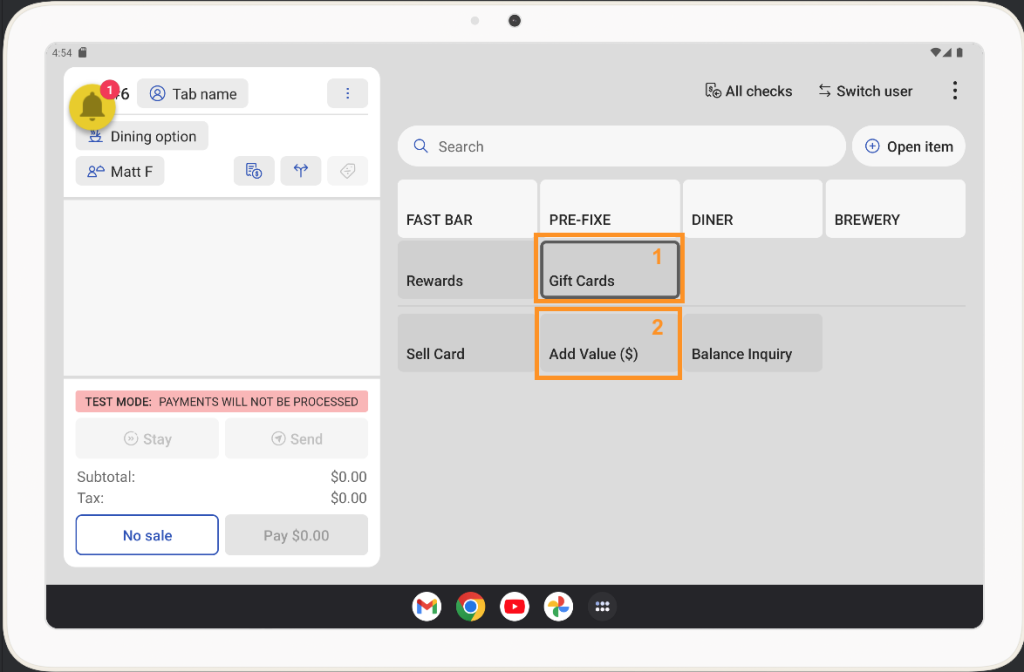
  1. Click Gift Cards > Add Value ($)

    toast - add value 1

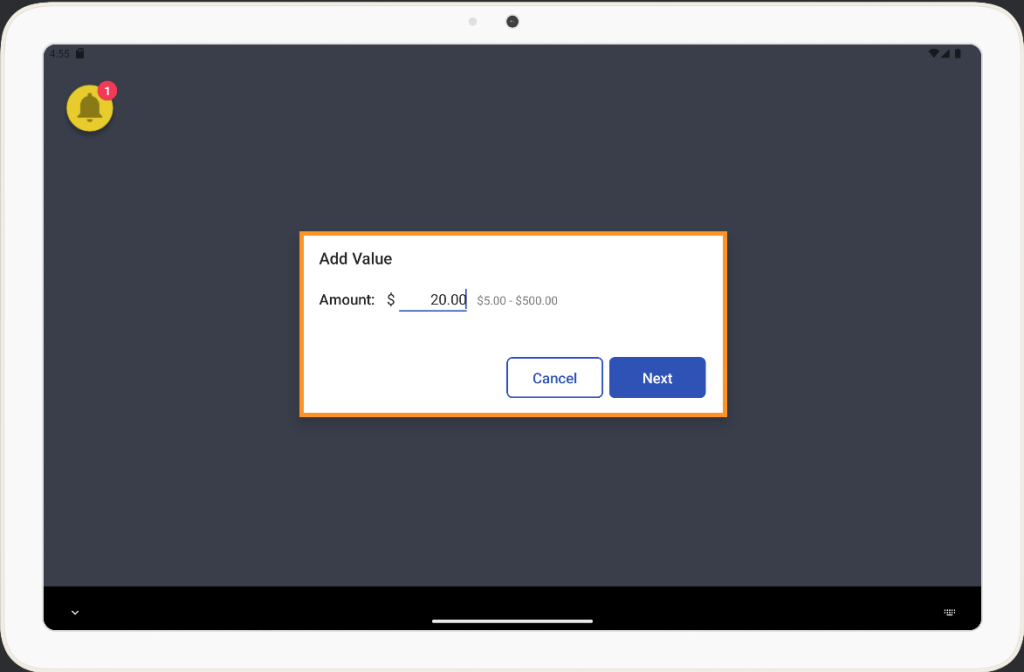
  2. Enter Top Up Value >  Click Next


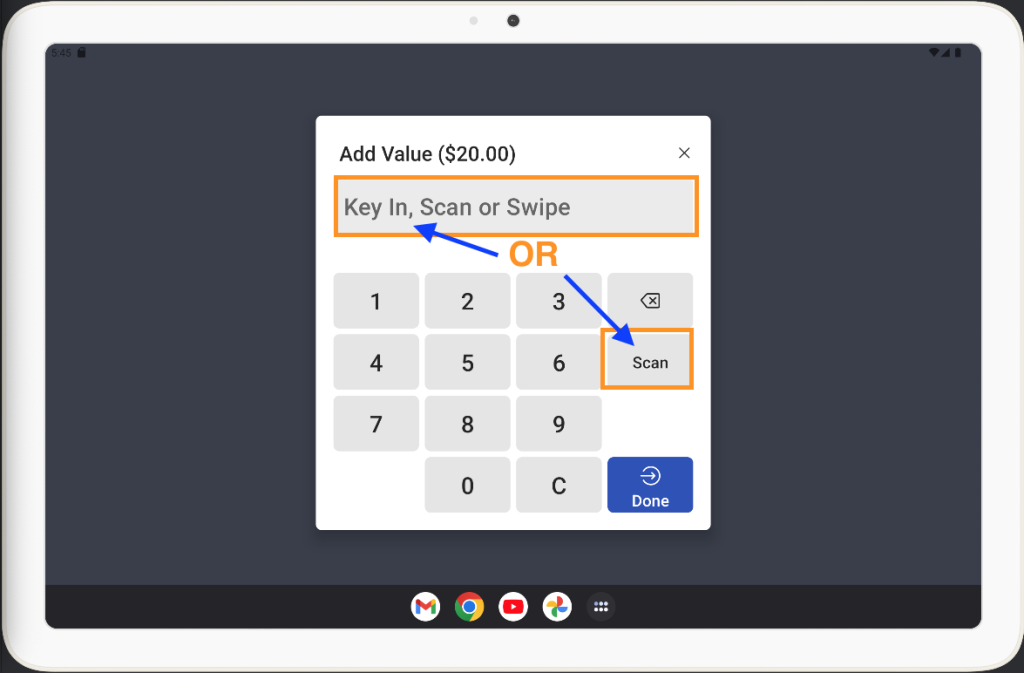
  3. Scan the card QR code using Toast POS Camera

    OR 


    Key In the Numeric code of the Card into the box

    > Click Done


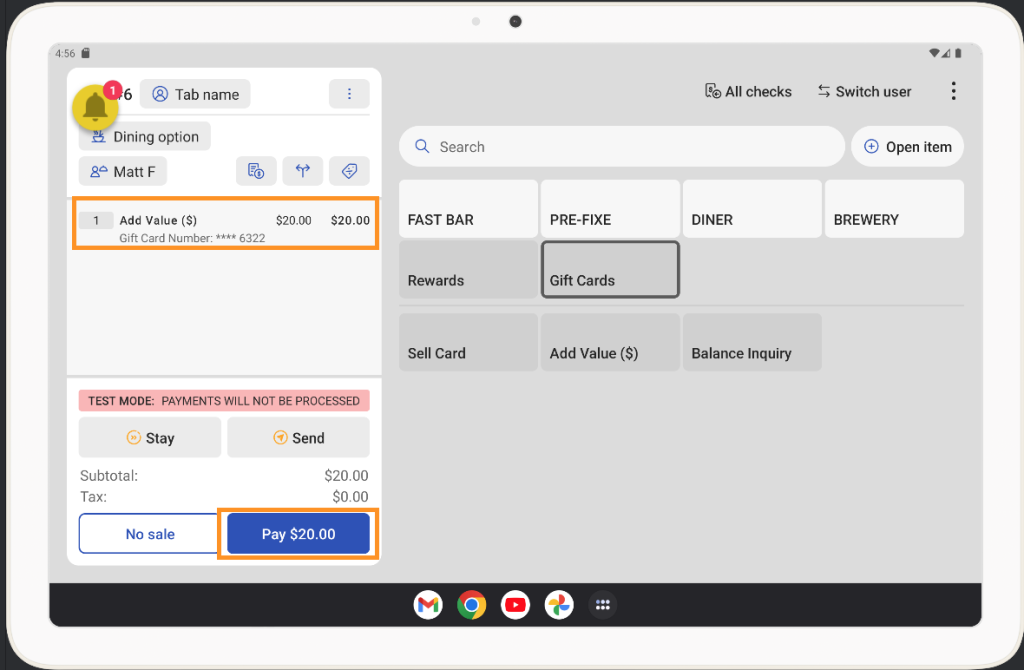
  4. You will now see the Add Value to this Gift Card as an item on the order Screen.

    If all looks good click Pay & close tab to desired payment method


170 views
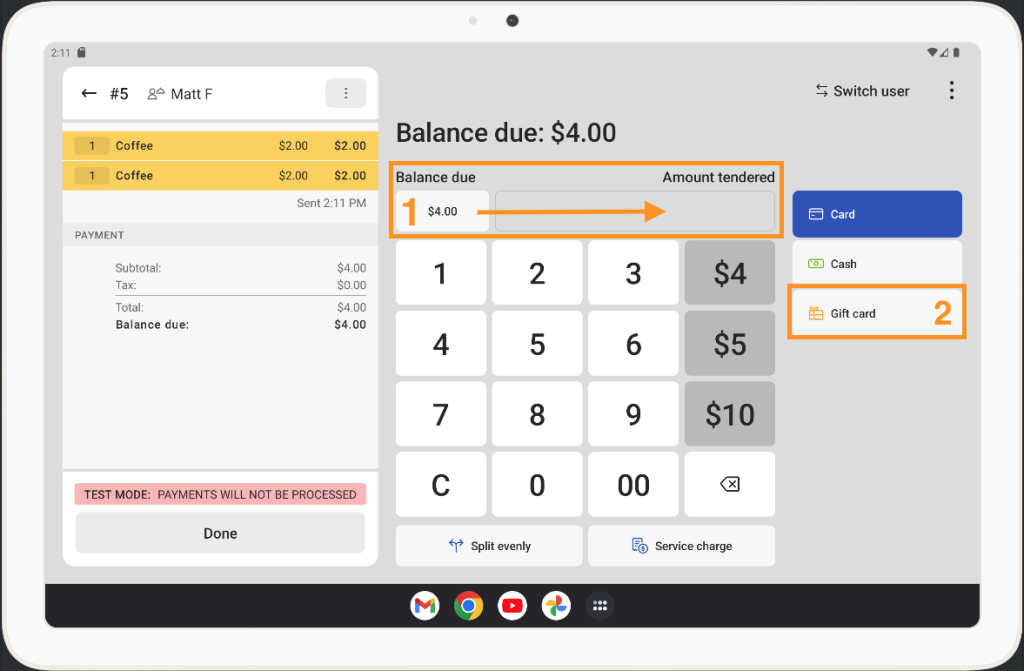
  1. Go to Payment Screen.

    If you want to pay an amount less than Balance Due (e.g. $2) then enter this custom amount where the arrow is pointing to 

  2. Click Gift Card

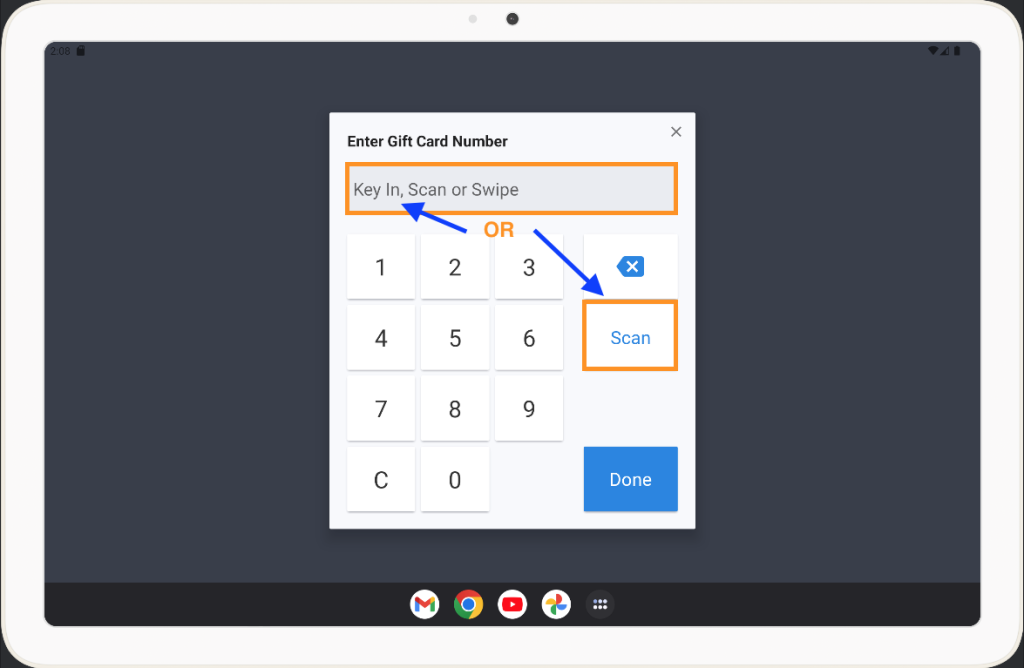
  3. Scan the card QR code using Toast POS Camera

    OR

    Key In the Numeric code of the Card into the box

    > Click Done

      toast pos pay with gift card

  4. Confirm the payment amounts. You may be prompted to add a tip here. Confirm all amounts are correct and click Complete Payment

220 views

Get A Demo

Leave your name, phone number and email address and we will be in touch to arrange a demo.

Boost revenue by 62% ?

The gift card solution that costs less and delivers more