
Deleting and Refunding a voucher

How to delete a voucher on Voucher Connect dashboard and refund from your Stripe account.

Sometimes plans change and a customer might look for a refund or maybe a customer ordered the incorrect voucher.

Deleting and Refunding a voucher is of course at your discretion but let me show you how do this:

  • To delete a voucher, pop over to your Voucher Connect dashboard.
  • Click Sales from the main menu.
  • You can search for the voucher you are looking to delete by entering the voucher code or purchaser name in the search bar on the right hand side.
  • Once you’ve found the voucher you are looking for, click on the Actions dropdown menu.

 

  • From here you will see a list of options, click on Delete (the last option)and confirm this is the action you want to take.
  • Once deleted, the voucher will still appear on your Sales list but it will be greyed out, just in case you ever need the details or want to restore the voucher in the future.

 

A deleted voucher will become invalid and the voucher code will not be redeemable.

That’s all there is to do on the Voucher Connect side.

Next up, refunding the voucher:

This is done through your Stripe account.

  • Pop over to your Stripe dashboard.
  • Find the payment to be refunded.
  • Click the ••• icon to the right of the charge and select Refund Payment.
  • By default, you’ll issue a full refund. For a partial refund, enter a different amount to be refunded.
  • Select a reason for the refund and click Refund.
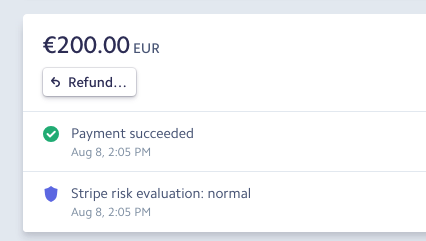
 

For more information on Stripe refunds, you can visit https://stripe.com/docs/refunds

And that’s all there is to it! If you need a hand with anything, just give us a shout. We are always here to help 🙂

147 views

How do I remove or share the postal delivery fee with the customer?

Remove or share the postal delivery fee with the customer.

The postal delivery fee is charged to the customer at checkout when Voucher Connect dispatches your postal orders. This fee covers materials and delivery costs. You might want to remove or share this fee with the customer, no problem. You can choose to absorb a set percentage of the fee using the Postal Dispatch Settings option in your dashboard.

  • Pop over to your Voucher Connect dashboard.
  • Click on Settings from the main menu.
  • Click on Delivery Options from the left-hand menu.
  • Next, scroll to the bottom of the page where you will see Postal Dispatch Settings.
  • From here, use the toggle to set the % you wish to pay. If you would like to absorb the full postal delivery fee, you can pull the toggle to the end so you pay 100% of the fee.

Just to note, by default this is set so the customer pays 100% of the postal delivery fee.

That’s all there is to it! If you need a hand with this, please let us know. We’re always here to help 😀

69 views

Remove or share the processing fee with your customers.


The processing fee is charged to the customer at checkout. You might want to remove or share this fee with the customer, no problem. You can choose to absorb a set percentage of the fee using the Processing Fee Sharing option in your dashboard settings.

  • Pop over to your Voucher Connect dashboard.
  • Click on Settings from the main menu.
  • Click on Store Settings from the left-hand menu.
  • Next, scroll to the bottom of the page where you will see Processing Fee Sharing.

  • From here, use the toggle to set the % you wish to pay. If you would like to absorb the full processing fee, you can pull the toggle to the end so you pay 100% of the fee.

Just to note, by default this is set so the customer pays 100% of the processing fee.

That’s all there is to it! If you need a hand with this, please let us know. We’re always here to help 😀

145 views

How to find your monthly invoices

Simply log into the dashboard to find your Voucher Connect invoices, generated automatically every month.

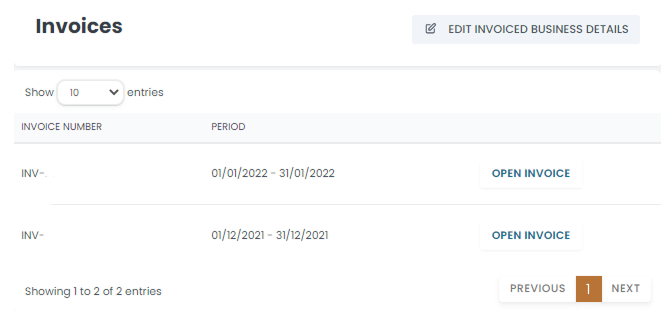
When you need your invoices from Voucher Connect, simply log in to your dashboard, and under Reporting on the main menu, click on Invoices from the dropdown.

Your invoices dashboard

On the invoices page, you will find your latest invoices listed below. Your new invoice will be available on the first day of every month.


And that’s all there is to it!

For historical invoices, please contact [email protected]

118 views

How to partially redeem a voucher


Your customers may want to use a part of their voucher and save the rest for later. Voucher Connect can remember the remaining balance.


Enable Partial Redemption

Not every seller wants their customers partially redeeming vouchers, so Voucher Connect lets you enable or disable partial redemption on each voucher product.
By default, partial redemption is switched off. You can switch it on by heading over to your dashboard, clicking on Products, and clicking edit on the voucher product you would like to enable partial redemption on. 

On the Edit Voucher Product page, clcik through until you see the Pricing section. Scroll to the Partial Redemption switch, and switch it on.  


Then hit Save and Exito save your changes. 


Partially Redeeming a Voucher

With partial redemption switched on, now when you are processing a customer’s voucher, you will have the option to partially redeem the voucher, and the remaining balance will be stored until the next time. 


PS. If you have added an expiry date to your vouchers, it’s a good idea to remind your customers of that in case they hold onto their voucher for too long.

If you need a hand with getting partial redemption set up, just let us know! We’re always happy to help 😃

135 views

Get A Demo

Leave your name, phone number and email address and we will be in touch to arrange a demo.

Boost revenue by 62% ?

The gift card solution that costs less and delivers more